Interface Overview
Welcome to Clarus! This guide will quickly introduce you to the app’s main areas. We’ve designed everything to help you focus on your writing.
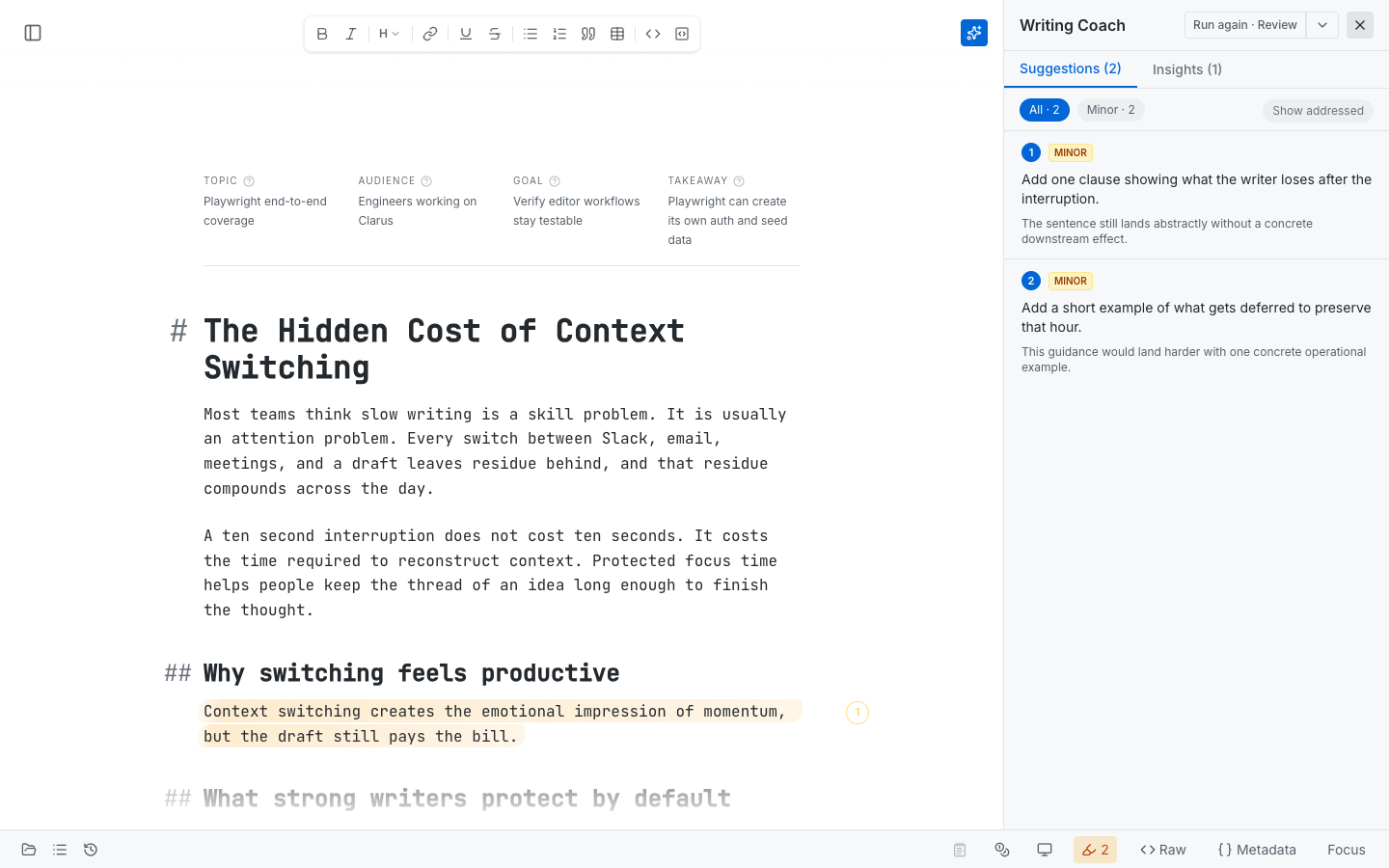
A full Clarus workspace with the editor in the center and the Writing Coach open on the right.
The Editor Area
This is where you’ll do most of your work. The editor is intentionally simple. You’ll see your draft in the center, lightweight prompts for topic and audience near the top of a new document, and a focused writing surface underneath. The goal is to keep your attention on the page instead of on interface chrome.
The Sidebar
On the left, you’ll find the sidebar. This area displays your projects and documents so you can browse existing work, jump between drafts, and start something new. Click any document to open it in the editor. To create a new document, use New File at the bottom of the sidebar.
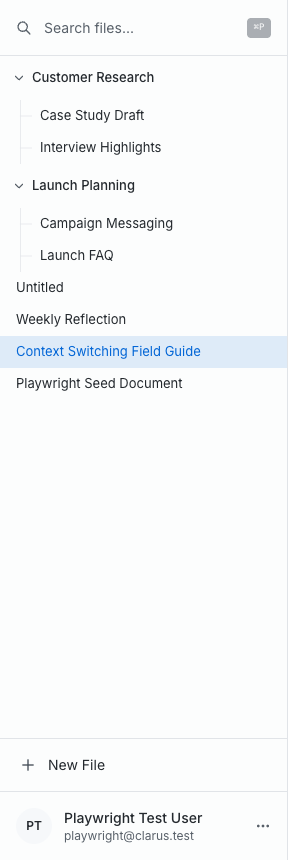
The Documents view keeps related drafts grouped together in the left sidebar.
The Toolbar
Across the top of the editor, you'll see our minimal toolbar. It provides quick access to essential formatting controls like headings, links, lists, quotes, tables, and inline code. The goal is simplicity: the tools you need are available immediately, but the editor still feels quiet.

Formatting controls stay close to the document without overwhelming the writing surface.
The Writing Coach Panel
As you type, helpful feedback appears in the Writing Coach panel. This panel lives alongside the editor on the right. It offers suggestions about clarity, structure, and flow, and it can switch between suggestion and insight views as your draft develops. Think of it as a focused editorial review panel rather than an autocomplete tool.
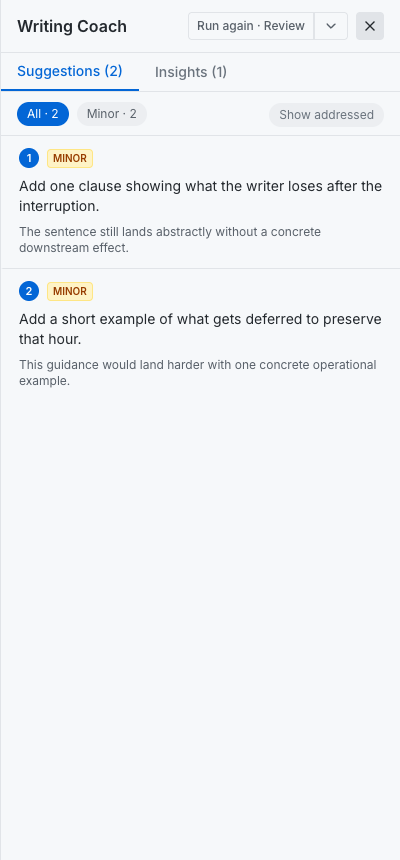
The Writing Coach surfaces actionable suggestions while keeping the draft visible beside them.
Theme Preferences
Customize your experience through Appearance. The theme preferences dialog lets you choose separate light and dark presets, and the preview updates immediately while the dialog is open. Pick the combination that helps you concentrate.
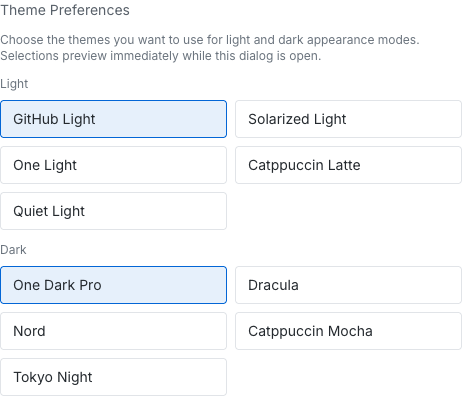
Appearance settings let you pick your preferred light and dark editor themes.
The Outline Panel
Switch the left sidebar from Documents to Outline to see the live heading structure of your draft. As you add headings, they automatically appear in order. Click any heading in the outline to jump directly to that section in the editor. This is especially useful for longer pieces where scrolling becomes slow and imprecise.
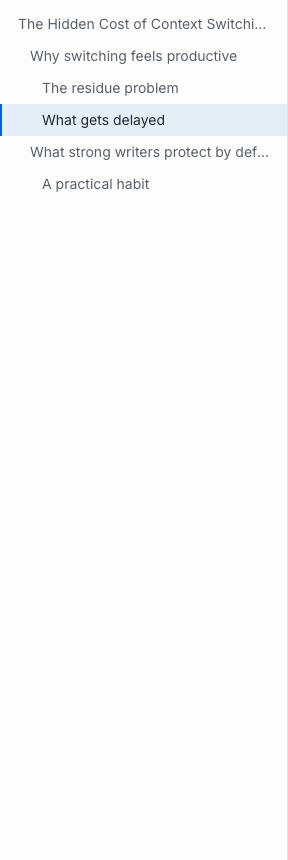
The Outline view turns your headings into a live navigation map for the current document.
If you need more detailed assistance, check our full documentation or reach out to support. We’re happy to help!