Quickstart
Quickstart: Your First Writing Feedback with Clarus
Welcome to Clarus! This guide will get you your first piece of feedback in just a few steps. It should only take about five minutes.
-
Sign up for an account. Go to app.clarus.page. Click the “Sign Up” or “Get Started” button. Follow the instructions to create your account.
-
Start a new document. Once you’re logged in, click New File at the bottom of the sidebar. This opens a fresh writing space immediately.

Use New File to open a blank draft from anywhere in the workspace.
-
Write something! Now, write a paragraph or two. Choose a topic you already know about. This makes it easier. It could be about your favorite hobby, a recent movie, or something that happened today. Don’t worry about perfection. Just write! Around 50-100 words is perfect.
-
Find the Writing Coach. Look for the Writing Coach panel on the right-hand side of the screen. If it is collapsed, use the coach button to open it. Give Clarus a moment to analyze what you wrote.
-
Explore your suggestions. The Writing Coach will now display feedback on your writing. You'll likely see multiple suggestions. Choose the very first suggestion presented.
Read the suggestion carefully. It explains what the tool noticed in your writing. Consider how you might apply it.
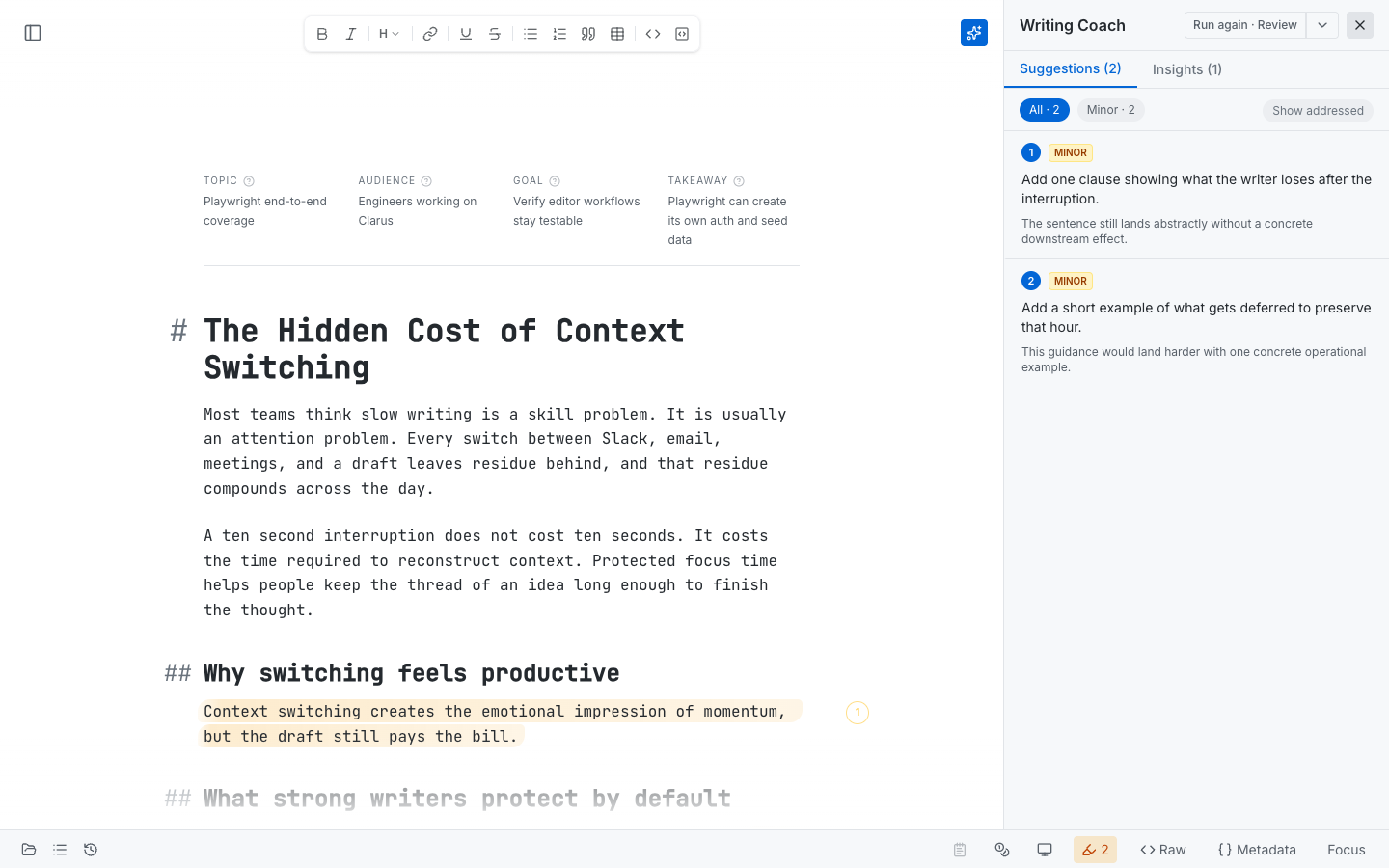
This is the core quickstart moment: draft on the left, coaching feedback on the right.
That’s it! You've successfully used Clarus to get constructive feedback. Now, experiment with writing more, and paying attention to the suggestions provided. This will help you sharpen your skills.
For more detailed guidance, explore the resources available within the app.