Outlining
Outlining
Clarus automatically builds a live outline from your document. It shows all your headings (H1, H2, and H3) in a dedicated panel. This panel stays visible alongside your editor. It’s designed for long documents that can get unwieldy fast. Never lose your place again.
What the outline shows
The outline reflects the structure of your content. It displays your headings in a clear, hierarchical list. The levels of your headings (H1, H2, H3) determine the indentation. This shows how your sections relate to each other. As you write, the outline updates instantly.

Heading levels become a live hierarchy in the Outline view.
How to use the outline to navigate
Clicking a heading in the outline instantly jumps you to that section in your document. This is faster than scrolling. The outline remains visible as you work. This provides a permanent landmark for your content. Use it to quickly review your progress. Or easily find where you left off.
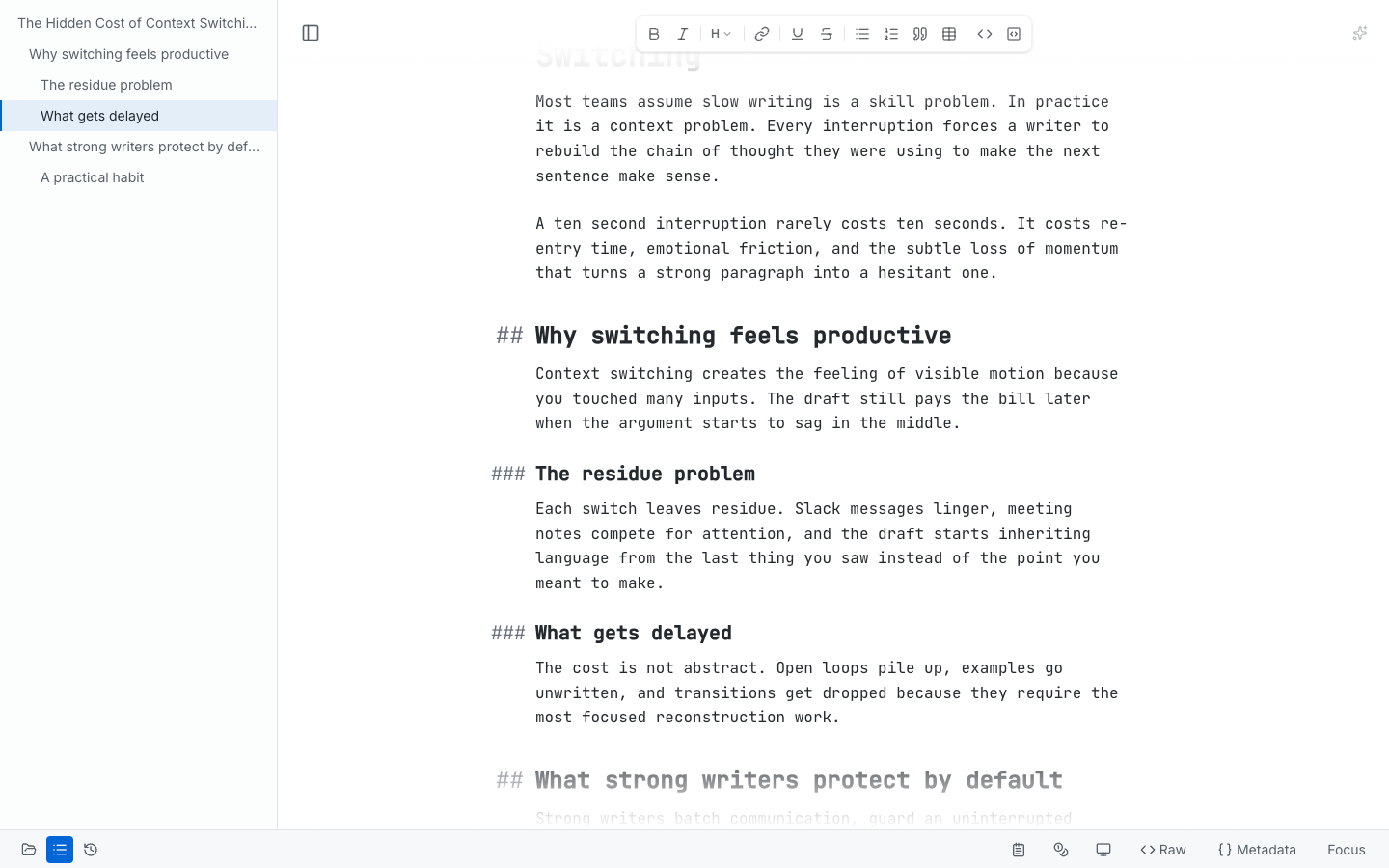
Selecting a heading in the outline moves the editor to the matching section.
Adding sections to the outline
There’s nothing special you need to do to update the outline. Simply add a heading (H1, H2, or H3) in your document. The outline updates immediately. Changes you make to existing headings also update instantly. It automatically reflects your current structure.
Staying oriented while you write
As you move through the document, the outline highlights the section you are working in. That active state makes it much easier to keep your place during long revision passes or when you are jumping between distant sections of the draft.