Sprint Mode
What sprint mode does (and why backspace is disabled)
Most writers share a common habit: they slow themselves down by constantly rereading and revising as they write. It’s a natural impulse, but it breaks your concentration and kills momentum. Sprint Mode exists to defeat that tendency. It’s designed to help you finish a draft, not craft a perfect sentence immediately. Think of it as timeboxing your writing – giving yourself a dedicated period to simply produce content.
The core feature of Sprint Mode is intentionally strict: the backspace key is completely disabled. This isn’t a bug. It’s a deliberate choice. We’ve found that letting you easily undo changes almost always leads back to editing. The goal isn't flawless prose during the sprint, but volume. It’s about establishing a consistent flow of thought onto the page. You can – and absolutely will – refine everything later. For now, embrace imperfection. The freedom from editing will surprise you.
How to start a sprint
Getting started is simple. Click the sprint timer icon to open the sprint launcher. Choose a time goal, optionally enable cleanup assistance, then press Start sprint and begin writing immediately.
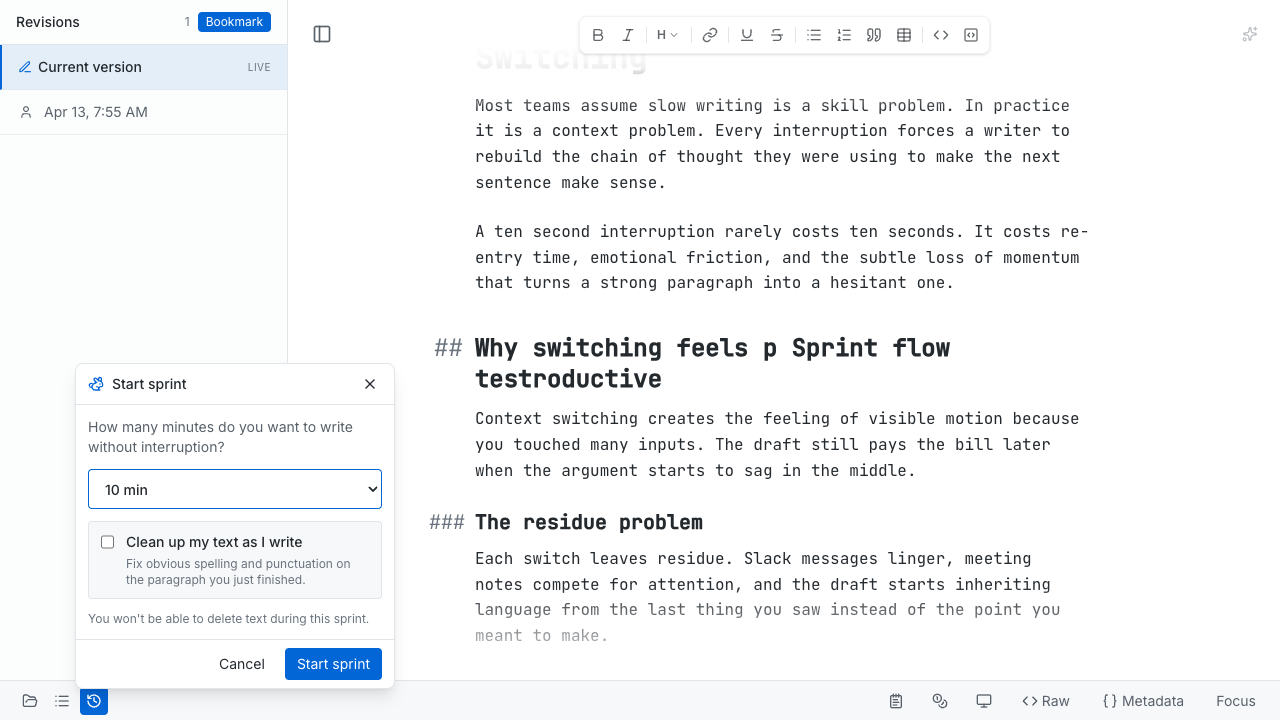
Sprint Mode begins with a lightweight setup dialog so you can choose the session length.
During a sprint
Once activated, here’s what you can expect:
- Backspace is disabled: You cannot delete or go back and revise.
- Autocorrect handles typos: We automatically fix obvious errors, so minor slips won't interrupt your thought process.
- Visible timer: The remaining sprint time is clearly displayed in the interface.
- Just keep going: Seriously. The most important instruction is to resist the urge to pause, reread, or perfect. Keep your fingers moving.
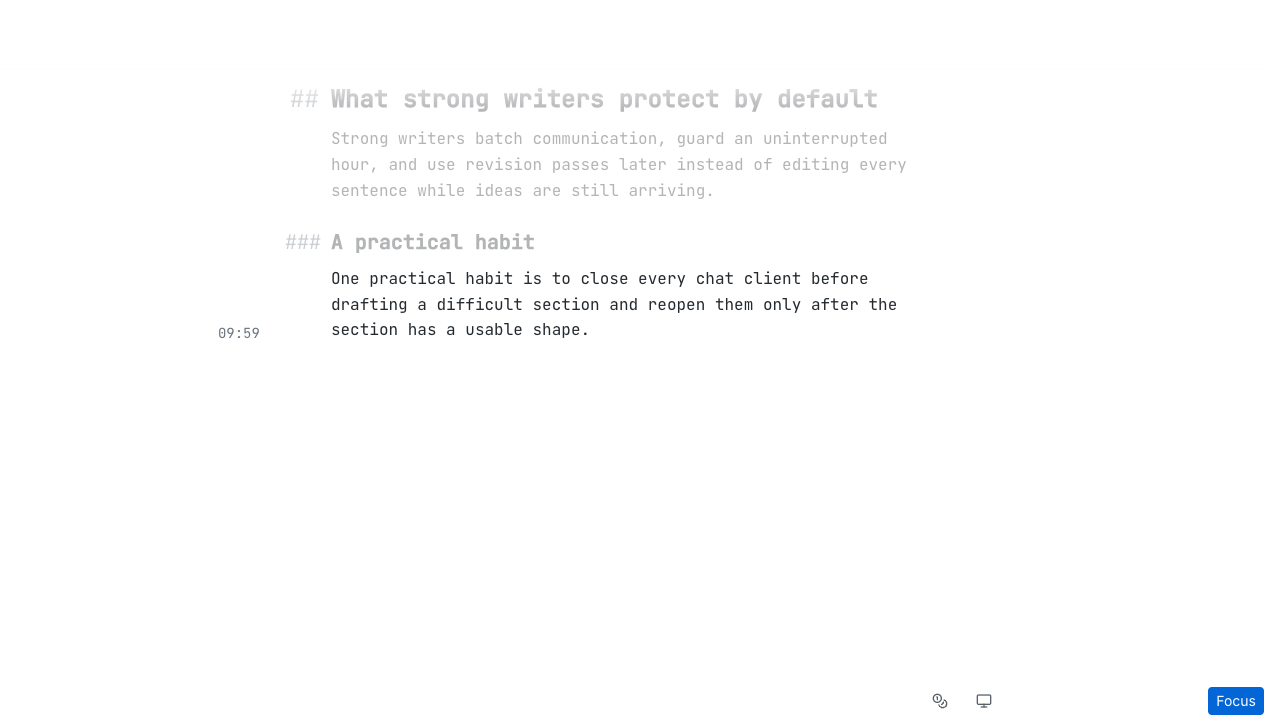
During a sprint, the timer stays visible while the rest of the UI fades into the background.
Ending a sprint
When you're ready to stop, open the sprint controls and confirm End sprint. Clarus exits focus mode and re-enables normal editing, including deletion. This is the moment to switch from drafting to revising.
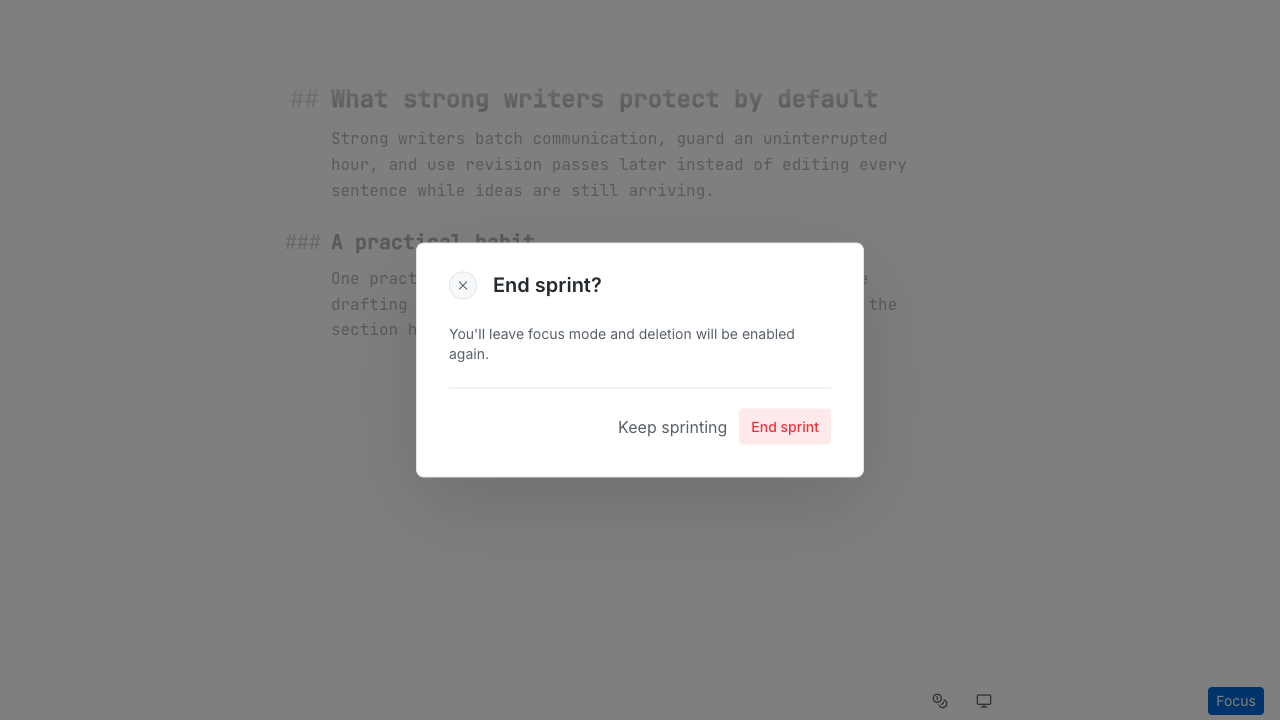
Ending a sprint is a deliberate action so you do not lose momentum by accident.
When to use sprint mode
Consider activating Sprint Mode in these situations:
- You’re stuck: When struggling to begin, or constantly revising the same opening paragraphs, a sprint can force you forward.
- First drafts demand momentum: Any time you're aiming to establish a raw draft, rather than perfect a statement.
- Avoid it for detailed structure: Sprint Mode isn’t ideal for highly structured pieces, like precise technical documentation, where accuracy is paramount during creation.