Track Changes
Track Changes
No detail gets lost in translation. In Clarus, change history is surfaced through the Revisions view. It records meaningful document states so you can inspect earlier versions, compare them to the current draft, and restore an older revision when you need to roll something back.
What Revisions record
Unlike typical track-changes tools, Clarus keeps a revision history that includes both your manual edits and coach-driven revisions. This gives you a complete history of your document’s evolution. In practice, the Revisions view gives you:
- Earlier document versions: You can move backward through saved revisions.
- Coach-driven and manual changes together: The history reflects how the draft actually evolved.
- Timestamps and bookmarks: You can see when a version was created and save important milestones.
Reviewing changes
To open revision history, switch the sidebar to Revisions. The panel lists the current version and older saved versions for the document.
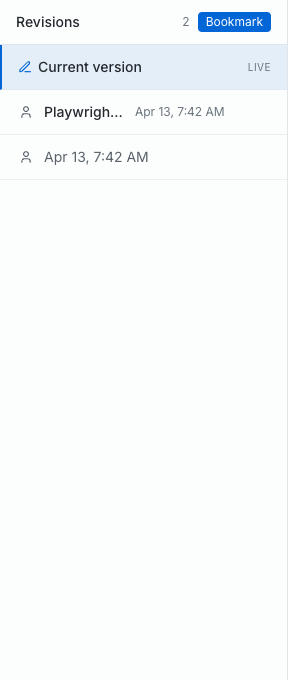
The Revisions view is where you browse saved versions and bookmark milestones.
When you select an earlier version, Clarus opens a comparison view. Changes are shown inline in the editor with clear visual cues:
- Insertions: Shown with green highlights and underlines.
- Deletions: Shown with red strikethrough styling.
- Current context: The surrounding draft remains visible so you can judge whether the older version is better.
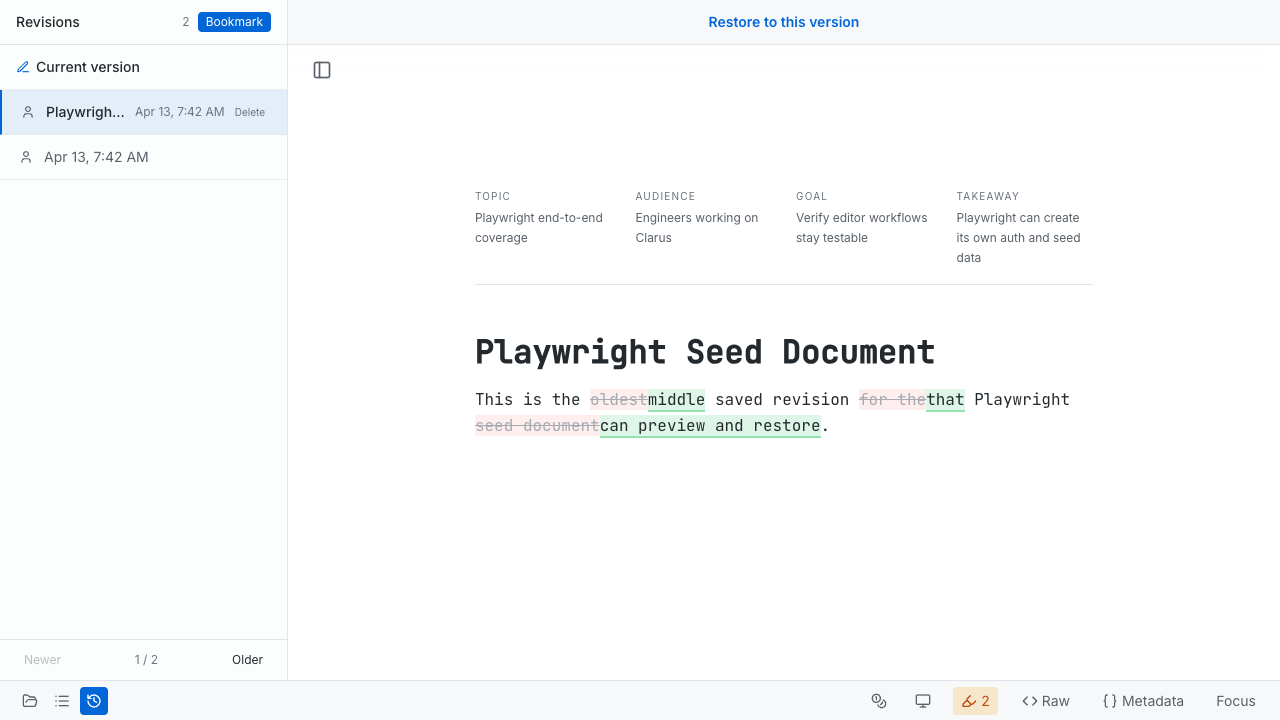
The comparison view makes additions and removals visible without leaving the document.
Restoring an earlier version
When you decide an older draft is the right one, use Restore to this version at the top of the comparison view. Clarus restores the selected version as the active draft. This is the current equivalent of “accepting” a historical state: you restore the whole version you want to keep.

Restoring a version is how you roll the document back to a previous state.
Use case: revising a draft
Revision history is especially valuable after working with the Writing Coach. If you’ve revised several sections in one pass, you can review the older version, compare the differences inline, and restore the previous state if the new draft isn’t working. This gives you a safer revision loop without worrying about permanently losing original content.